Answered
Some of our teachers' draft responses and scores in the feedback area to review later. We have noticed the draft symbol (the bookmark) disappearing on these items after logging out and back in, or the next day. The symbol used to remain on these items from what we had seen. Was this a change made?
Comments (17)
Good afternoon Julianne,
I wasn’t able to reproduce the behavior you described. Could you share an example enrollment ID and activity ID where the Draft icon was previously showing but no longer appears? That will help us investigate further.
Yes, a teacher experienced it for this enrollment ID: 240973194 and this activity:
I wasn't sure where to find the activity ID.
The teacher had drafted a response and saved it on 10/21 and then when they went to revisit and submit the feedback and score on 10/21, the symbol was gone. They are finding it hard to identify which items in their queue are drafted versus new.
Hi Julianne,
Thank you for providing this!
We were not able to replicate the behavior on that activity after adding a test student to the course. The draft saved both the score and feedback, even after logging out and back in to view the Grade Editor in Buzz. We tested this in both Chrome and Firefox to simulate new login sessions.
Could you please share the exact steps that in your testing consistently lead to the behavior you’re seeing? That will help us reproduce it on our end and look into it further.
I think I must have been unclear. The feedback and grades are saving. What is disappearing is the symbol next to the assignment to show there is a draft:
The little black box will appear initially but later is not visible.
Thank you for clarifying!
That icon isn’t the saved Draft icon — it’s actually the “Needs Grading” icon, which means the activity is waiting to be graded. Once the activity is graded, that icon will disappear.
I’m not sure where exactly your screenshot was taken from in Buzz since the image is cropped.
Even if we haven't submitted, just drafted, this icon will disappear?
Can you clarify where the screenshot you included in your previous comment is located in Buzz (for example, on the teachers needs grading page, in the student gradebook, etc)? I am not sure what page you are on, so it is difficult for me to troubleshoot. It may be helpful if you can take a screenshot of the entire page that you are viewing.
Apologies, this is in the "needs grading" section of the teacher app, the left side where there is a list of assignments.
Hi Julianne,
When looking at the Needs Grading page in my own test course, I do not see that icon next to the activity title, before or after I start grading and finish grading the activity. See below.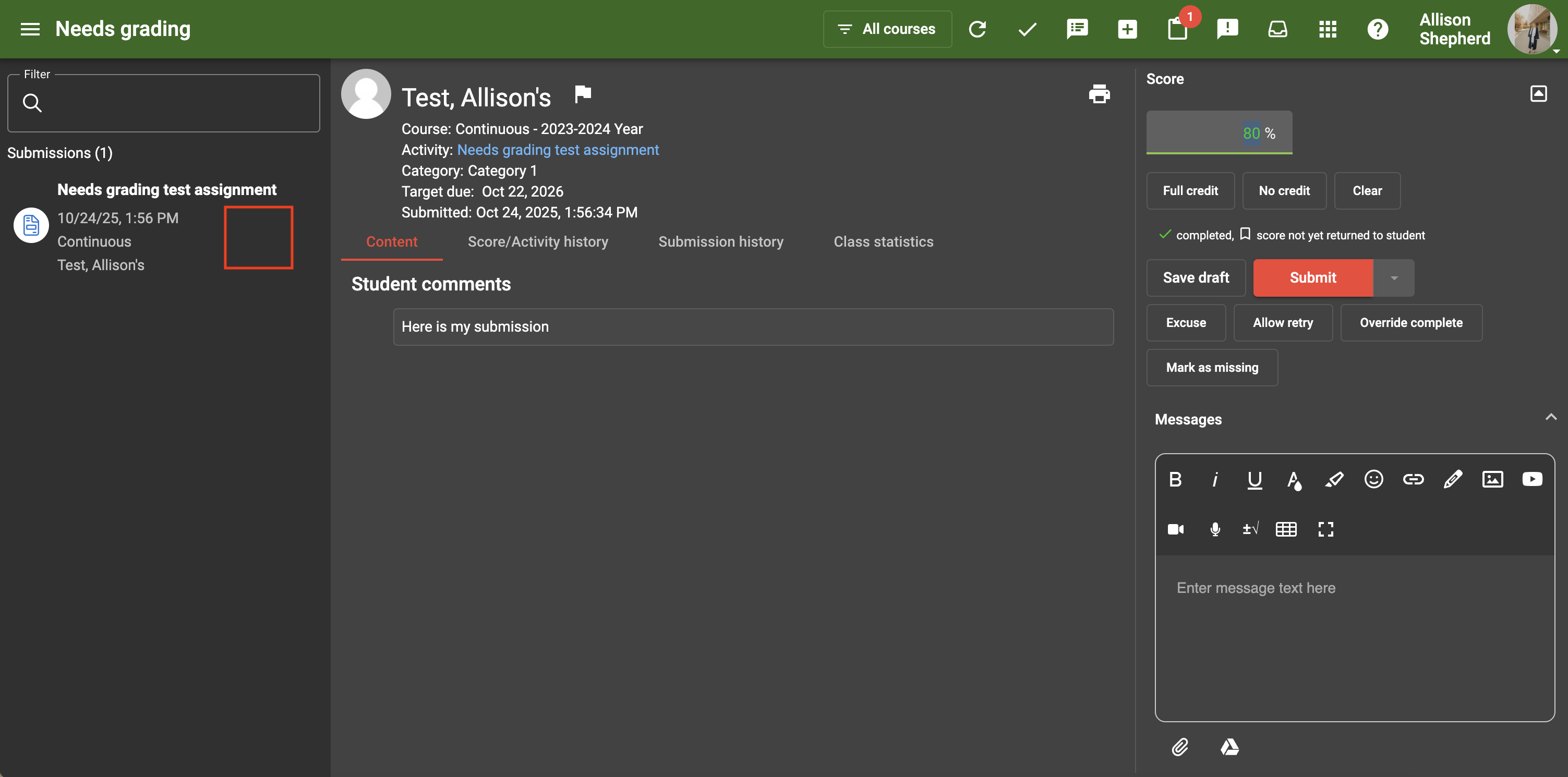
Additionally, I proxied as the teacher in course ID 233382478 and was unable to see that icon when looking at their needs grading page as well. See below.
Can you please provide confirmed step by step instructions on how to replicate the behavior you reported, including the user ID of the user that is encountering the behavior and how they get into the state of seeing and then not seeing the draft icon?
We go to the Needs Grading queue. We write feedback messages and enter scores, but don't submit, just save draft. A small symbol appears next to the student's assignment on the left side.
If we refresh, the symbol is gone instead of staying there to identify a drafted message.
Here is a video showing you the steps. (Removed)
I am running into this as well as another teacher, ID: 218473743
Thank you so much for the detailed steps and the video — that was very helpful! I was able to replicate the behavior and am currently investigating it. I’ll follow up with an update once I have more information.
In the meantime, since this is a public forum, I noticed the video includes student names. You may want to remove that link for privacy. You can do this by clicking the three vertical dots on your comment and selecting Edit.
Thanks, I'll lock down the sharing for it. I appreciate it!
@Julianne Cochran — We’ve removed the link from this thread and have captured the video for our investigation.
If your organization has privacy concerns about posting content in this public customer community, we recommend reporting those support topics directly to your authorized support representative. If necessary, they can submit a support ticket to Agilix Support on your behalf.
Ok thank you for the information.
Thank you for your patience while we looked into this!
We’ve confirmed that the system is working as intended. When you first open the “Needs Grading” screen, the left column doesn’t show scores or statuses—even if they were previously set. Once you make a change to a score within your current grading session, the left panel updates to show that activity’s current score and status.
This design helps you easily see which activities you’ve already interacted with and which ones still need attention. It can also be handy if you want to revisit a previously graded activity to review or copy from it.
When you refresh the page, the list resets—clearing the scores and statuses—so you can start a new grading session with a clean slate.
Thank you for the update. Our experience in the past had been that we would still see a symbol identifying those assignments which we had drafted after refreshing or logging out and back in. Some of our teachers utilized that workflow for the last few years. This seems like there has been a change but apparently it is intended. It makes things more challenging for us as we have to read feedback messages on each item to know whether it was something drafted previously.
I agree with Julianne! I used to use this feature also where the icon would stay after refreshing. I found this post/stream when researching why there had been a change. I am really missing that prior ability to have the flags remain!!